Wednesday, 29 May 2019

How To Use Apple Music On Apple TV? Dial Apple Number


If you subscribe to Apple Music and having own Apple TV, the streaming music world is your virtual record store. You can play millions of songs from thousands of artists in any respective order, all from the Music app on Apple TV. Simply find what you want to listen to, and hit play. In case, you find any kind of trouble either in searching the music or playing it on Apple TV, then you can frequently obtain Apple Phone Support for cost-effective solution. The skilled as well as dexterous squad will help you out with 100% satisfaction.


Steps ToUse Apple Music On Apple TV

Go through the below-mentioned steps one-by-one as it is simple and easy to access for everyone:

·         Search For Album From a Song In Apple Music On Apple TV

Ø  Open the Music app first
Ø  Select a song whichever you would like to play on your Apple TV
Ø  Press and hold the trackpad on the Siri Remote for a couple of seconds while the song is playing to call up the options menu
Ø  Select Go to Album

·         Find An Artist From An Album In Apple Music On Apple TV

Ø  Open the Music app on your device
Ø  Select an album
Ø  Swipe to the right and choose“Go to Artist” under the album artwork

·         Add An Album From Apple Music To My Music

Ø  Open the Music app
Ø  Select an album
Ø  Swipe to the right and select “Add” under the album artwork

·         Add A Song From Apple Music To My Music

Ø  Open the Music app
Ø  Select a Song
Ø  Press and hold the trackpad on the Siri Remote for one second to call up the options menu
Ø  Select Add to My Music

·         Play, Pause, Fast Forward, And Rewind In The Music App On Apple TV

Ø  Open the Music app
Ø  Find an artist, song, or album to play
Ø  Select a track. If you want to play an entire album or playlist accordingly, select the first track
Ø  Press Play/Pause button to pause or play music
Ø  Press and hold the right or left side of the trackpad on the Siri Remote to rewind or fast forward
Ø  Press and release the right or left side of the trackpad on the Siri Remote to skip ahead or back 10 seconds


Dial Apple Phone Number If Yet Unable To Use Apple Music On Apple TV

Don’t Panic! We have highly expert techies available round the clock at Apple Phone Number to make your troublesome annihilated from the root. Hence, instead of wasting your precious time for searching trustworthy support service, give an instant call and get united with the techies.


Monday, 20 May 2019

Why Apple ID Is Not Working? Get Answer At Apple Support Number


The Best Solution to Fix the Apple Problem 

It’s normal that sometimes your Apple ID is out of working. You may forget password, you may encounter some unknown error as well. It’s annoying for iOS users when Apple ID is not working well. In this post, you will learn that what you should do when we facing this problem. Moreover, you can take the real solution once you put a call at Apple Support Number and the numbers of qualified technicians are working here to deliver you top-notch services in a cost-effective manner.
There are several reasons which might be causing the problem Apple ID Is Not Working either in your Mac device or iPhone. Some are mentioned below, so just have a glimpse here:


·         Due to Internet Connection: Sometimes this issue may appear because of poor internet connectivity or incorrect VPN route. So as to fix this, you need to make sure that VPN is not activated or you have the proper active internet connection.

·         Apple Server: It can be cause because of the problem in the Apple server or when the service of Apple is low. Try to login to your Apple account after some time but make sure to reset the device first.

·         Due to an issue with a password: Your Apple Id may not work properly if you have forgotten your account password or you may be entering the wrong password. So you need to reset Apple Id password first and then you can try to login your account by mentioning the correct Apple Id and its new password.

·         Time Zone issue: Sometimes due to the incorrect time zone, you might be facing the connection problem with your Apple Id. Double check the Time and Date Setting by just going into Settings Option> General> Date & Time. And also make sure that you are entering the correct information.

Solutions To Fix The Problem Apple ID Is Not Working

Follow the below provided steps appropriately as doing so the problem will be resolved within a pinch:

Solution 1

·         Reset Your Password: Normally, you’ll log into many systems with Apple ID, like iCloud, iTunes, FaceTime, etc. And because of not using the password for a long time you may forget the password. Thus, you can fix this problem with password resetting.

Solution 2

·         Create A New Apple ID: If your Apple account is locked and to make it unlock you need to enter the answer of the security question that you filled at the time of creation. So, if you don’t remember this, then create a new one.

Solution 3

·         Call At Apple Support Phone Number: If you really don't know how to do, then simply dial Apple Support Phone Number . Generally, the techies provide you some professional help. And they can lead you on phone call to do every instruction.


For more information  :-   https://www.applesupportphonenumber.co/


Saturday, 18 May 2019

Remove the ITunes affected error such as error 9, 4005 via Apple phone number


Communication device becomes the integral part of one’s life as it gives the smooth pathway to stay connect with loved one and other professionals.  This electronic device comes in two forms: one form is found in wired form and other form is wireless shape.  There has been given the great preference of Apple wireless device rather than wired device.  The i-pad and android application are superlative part of Apple brand. No one can expect that you will go through the bad performance in term of rejoice and entertainment events.  As soon as you see the undesired error message in i-tune part, an individual should have to contact Apple phone number. By doing so, any failure in Apple device can’t stay anymore and hurt the business productivity in great proportion.


Without any previous record, there would fall the solid essence forupdating and restoringbeautiful change and theme development to let to evaporate various changes in it.  There would be 50 percent possibility that you go through error 9, 4005, 4013, and any other thing in i-tune part. Recovery of these errors can be possible in case you want to update IOS device again.  You can dial Apple number for knowing the best procedure and techniques for removing technical issue.

Update your IOS device again:

There may be possibility that IOS device can be disconnect while upgrading or restoring it to get introduced with positive result. In case I phone disconnect during any kind of activity, your device cannot able to show result. Out of below depicted message, you can go through below depicted challenges.

·         An error encountered9 and incapable to restore device.
·         An error encountered 4005 and not to let restore device again.
·         An error encounter 4013, 4014 and not to allow restore device.

Take the look to avoid such turbulence:

·         You ought to install the latest version of i-tunes.
·         Force your device to start.
·         It would be nice to connect your computer with USB cable.
·         As I-tunes ask to do update or restore, you can click update to reinstall iOS and keep your personal data safe.
No matter how many steps required for removing technical issues, you would have to come on our third party professional team to ask the solution. As soon as you get in touch with various technical issues, you do not get too late to discuss all matters to technical team. Feel free to contact Phone number for Apple Support while solution of problem does not lie in your hand.  You can dial our toll free number for soon recovery. Our technical support is available to you all the time. For knowing more information, you can surf our web address.


Wednesday, 1 May 2019

How to get effective solutions to fix Apple Error 1035?


Apple error 1035 takes place, when updating or setting up the voicemail on iOS devices. This technical bug no longer permits you to use voicemail on your iPhone. As it is a mobile network related error, the solution provides from one mobile carrier to another. To fix apple error 1035, you can call online apple support team immediately. Here are some effective ways suggested by expert apple technicians.


Causes why Apple voicemail not working

Apple error code 1035 will take place, if you’ve updated your iOS.  Apple users have experienced this error. The technical error lies in the earlier configuration process of the ios device. In addition, this technical error depends upon the way the update combines with new settings of the device. You might experience this error, if the latest apple iPhone voicemail setup is not in accord with the updated device. Additionally, a single bug in the update might clash with iPhone functions. Moreover, an outdated firmware or errors in the network settings might lead to this technical problem. To know more about causes, you can call at apple support number to get effective solutions.

Effective Solutions to Fix Apple Error Code 1035

Solution 1- Resolve Airplane Mode

Airplane mode is a good feature to unplug your iPhone from the cellular signal. As this feature is turned off by default, you should turn on this feature. Hence, go to the setting and switch on the toggle for airplane mode.  You should reconnect to your cell tower for getting a better signal. Navigate to the voicemail and it will work again, if this solution has worked rightly.

Solution2- Resetting Network Settings

You need to open the settings app and navigate to the “General” button. “Reset networking settings” is button from the drop-down menu of the “reset” button.   Rebooting your phone and the voicemail will work as predictable. Make a memo of Wi-fi router passwords, you might lose them after reorganizing the network settings.

Solution3- Resetting your apple voicemail password

This process has worked with a lot of users, hence you can give it a try. So go to “settings” and select “phone” button. Then tap “change voicemail password” button and set a new password for your voicemail.  Lastly, hit the “save” option to apply the changes. All these above steps are sufficient to fix this error code. Still, if you’ve any confusion, you can call at apple support phone number to get quick solutions from expert apple technicians.


Monday, 22 April 2019

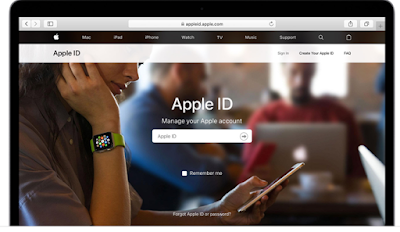
Via Apple Support learn to create, manage and use an Apple ID

To access the apple services  and Get Best Results

To access the apple services like app store, apple music, iCloud, imessage, Facetime and many more, you will need an apple ID. It is basically works as your Apple account and you only need one Apple ID to access all the Apple services. If you wish to know more about Apple ID in detail, then you need to dial Apple Support Number and join hands with Apple support executives. They will surely provide you all the desired information that you want to know before using an Apple ID.
As we already said, you only need one apple ID to access all the Apple services. So, before you create a new one, consider whether it might be healthier to continue using one you already have. One thing you also need to remember that you might not be able to move all the data or purchases from an old apple ID to a new one. However, if you don’t have one Apple ID and wants to create, sign in and manage it, then carefully follow the below mentioned steps which are provided by the Apple Support team experts.

How to create Apple ID?

You can easily create your Apple ID when you set up a new device or log in to iTunes or iCloud for the very first time. You can also go to Apple ID site and choose create your Apple ID link to create an Apple ID.

Here's what you need:

  1.         A valid email address that will be used as your Apple ID user name
  2.          Your date of birth
  3.         A strong password
  4.          Three security questions and answers to validate your identity and this information can also be used at the time of resetting your password.
  5. We recommend you to use two-factor authentication to make your Apple ID more secure. If you don’t use two-factor authentication, then you need to provide a rescue email address.


Sign in with your Apple ID

Whenever you have asked to sign in to apple device or service, you can use the same apple ID and password every time. You can sign in with your Apple ID to:

  1.          iCloud to keep your personal content updated on all your devices
  2.          The iTunes, Books, and App Store to make some purchases and access previous purchases
  3.         iMessage and FaceTime3 to talk and text with friends and family.
  4.        A new device when you set up


Learn how to manage your Apple ID

  1.  Since you Apple ID is used in all of your devices and services, so it is important to keep your account updated constantly. To manage your account, simply sign in to Apple ID account page at any time.
  2. Keep updating your Apple ID email address to ensure it’s an address that you use often.
  3. You can also change your password to maintain the proper security.
  4.  Keep managing your payment information to maintain your payment method or billing address up-to-date.
  5. You can also add additional email addresses to help people for communicating with you on Apple services like FaceTime, iMessage and find my friends.
  6. You can change your verified phone number too.


If still you are unable to create an Apple ID, then we suggest you to make a call at Apple Support Phone Number. At here, the available professionals will answer your call and provide you the best available solution to resolve all your need.


Friday, 19 April 2019

How to fix Apple Error 1005F without the help of Apple Experts?

Dial Apple Support Phone Number to create, manage and use an Apple ID

The apple error 1005F is an unsafe and harmful error that makes you more annoying. If it is not resolved at right time, your system might suffer heavy damage. Hence, it is very important to resolve Mac recovery 1005F error without interruption. To resolve Apple error 1005F, you can call at apple support phone number to get quick solutions.

Main Causes of Mac Internet Recovery Mac Error 1005F-

There are so many technical causes behind this error. A lot of Mac users encountered this error on a daily basis. This error code appears in your system due to wrong internet connectivity. Another cause might be an error with virus-prone files and backup files. It may be caused by the corrupted catalog files. Apart from this, you can face it due to corrupted or damaged hard drives. If you’ve a wrong file or hard drive on the system, this error code can damage your system permanently.

Easy Troubleshooting Solutions to Resolve Mac Internet Recovery Error 1005F
Solution1-Check Internet Connection Carefully

You should check the internet connectivity immediately. This process is very easy and quick. To do it, you should check the internet settings on the system. Then, you must check the availability of Wi-Fi connections. Now, you need to go to the Network settings. Then, you have to fix network errors.
When you’re finished with procedure, choose the best network that is very compatible to do all the tasks. At last, you should check 1005F error code that is resolved or not.

Solution2- Check Disk Utility Tool

This error may occur due to the hard drive failure. First of all, you should check disk utility tool.

You need to run Disk Utility tool for checking rightly.
In Mac file system, solve misconfiguration in Mac file system.

You can run reliable and effective antivirus program for recognizing the error and resolve it immediately.

After solving, log out from everywhere.

When you are completed with the procedure, you should login to your account again. Thus, this error code should be resolved. Still, if you have any confusion, you can call at apple support phone number to get complete guidance from apple experts.


How do I talk to a real person at Apple?

Are you unable to talk to a real person at Apple’s number? If yes, we can help you to suggest 4 important tips and tricks for you so that...